Documentation
Documentation
Install, configure and upgrade Coxwall, and recover if something goes wrong.
Getting started
- Install and activate Coxwall from Plugins → Add New.
- Open Coxwall in the admin menu and follow the five-step setup wizard.
- To upgrade, open Coxwall → License, sign in with your Coxwall account or paste your license key.
How do I upgrade to Pro?
- Install Coxwall Free. From Plugins → Add New. The five-step wizard turns on the firewall, scanner and login protection in about three minutes.
- Choose a Pro plan. Your key arrives in the order email and under My Account → Coxwall licenses the moment payment is confirmed.
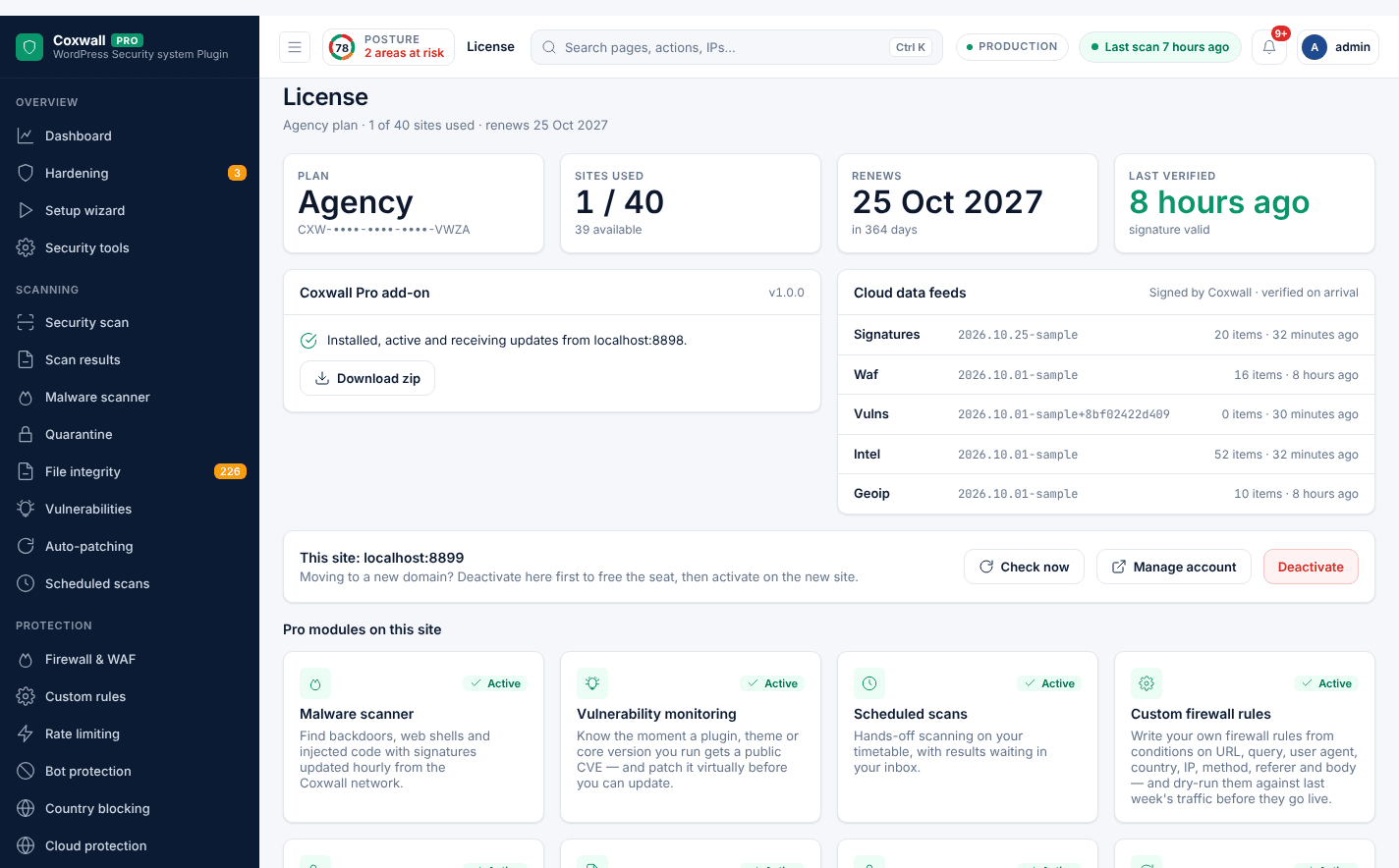
- Pro installs itself. In Coxwall → License, sign in or paste the key. The site activates, installs Pro and unlocks every Pro screen — settings and logs are kept.
What are the requirements?
- WordPress 6.6 or newer (tested up to 6.8).
- PHP 7.4 or newer.
- A writable wp-content folder for the firewall configuration and the must-use loader. If it is read-only, nothing breaks — the plugin explains what it could not set up.
What if I lock myself out?
Add one of these to wp-config.php (or create the file) to stand the protection down:
define( 'COXWALL_DISABLE_WAF', true );— Turns the firewall off.define( 'COXWALL_DISABLE_LOGIN_SLUG', true );— Restores the default wp-login.php URL.define( 'COXWALL_LOCKDOWN_OFF', true );— Ends a Pro emergency lockdown.wp-content/coxwall/waf-off— Empty file that stands the firewall down when Extended protection runs it before wp-config.php.
Which external services does it contact?
- WordPress.org (api.wordpress.org, downloads.wordpress.org, core.svn.wordpress.org)
- To download official checksums and original files for integrity checks and repairs. No personal data is sent; only your WordPress, plugin and theme versions.
- Have I Been Pwned (api.pwnedpasswords.com)
- When the breached-password check is on (Password security), Coxwall sends the first 5 characters of the password's SHA-1 hash, never the password, and compares the returned list locally. Turn it off under Coxwall → Password security.
- CAPTCHA providers
- Only if you choose one instead of the built-in CAPTCHA under Coxwall → Form protection: Cloudflare Turnstile (challenges.cloudflare.com), hCaptcha (hcaptcha.com) or Google reCAPTCHA (google.com/recaptcha). The visitor's browser loads the provider's script and Coxwall sends the response token and visitor IP to the provider to verify it.
- Notification channels
- Only those you configure under Coxwall → Notifications: Slack (hooks.slack.com), Telegram (api.telegram.org) or your own webhook URL. Alerts contain the event description, time, IP address and user name involved.
- Coxwall license server (coxwall.com)
- Only if you activate a Pro license. Sends your site URL, a random per-install identifier, WordPress/PHP/plugin versions and, for vulnerability checks, the list of installed plugin and theme versions.
What do the 17 scan stages check?
- WordPress core
- Plugins
- Themes
- Uploads
- Database
- Backdoors
- Malware signatures
- Virus patterns
- Cron jobs
- Scheduled tasks
- DB injection
- Spam links
- SEO spam
- Redirects
- Hidden files
- PHP shells
- JavaScript malware
Which 20 hardening checks are included?
- Block PHP execution in /uploads
- Coxwall data folder private
- Disable directory listing
- Protect wp-config, readme and log files
- Correct wp-config.php permissions
- wp-config.php above the web root
- Hide PHP errors from visitors
- Disable file editing in wp-admin
- Disable XML-RPC
- Disable pingbacks
- Hide the WordPress version
- Security response headers
- Disable REST user enumeration
- Site served over HTTPS
- Safe default role for new users
- No account named "admin"
- Database table prefix
- Automatic security releases
- Plugins, themes and core up to date
- Supported PHP version
FAQ
Frequently asked questions
Is Coxwall really free?
Yes. The Free plugin is GPL-licensed on WordPress.org. Its 23 features — firewall with 29 rules, 17-stage scan, passkeys, 2FA, brute-force protection — never expire and need no account.
What does Pro add?
18 modules that need our cloud: hourly malware signatures, vulnerability alerts with virtual patching, rate limiting, bot and country blocking, live traffic, threat intel, reports, backups, uptime monitoring and more.
Do I have to reinstall anything to upgrade?
No. Open Coxwall → License in wp-admin, sign in or paste your key, and Pro downloads and installs itself. Settings and logs are kept.
What happens when my license expires?
Free protection keeps running and nothing is deleted. Pro modules pause and cloud data stops updating until you renew. If our server is unreachable, you get a 14-day grace period.
How many sites can I use a license on?
Each plan includes a number of site activations. Deactivate a site any time under My Account → Coxwall licenses to move the license.
What is your refund policy?
Ask for a refund within 14 days of purchase. Refunded license keys are revoked automatically and the Free plugin keeps protecting those sites.
Will the firewall slow my site down?
It inspects each request with precompiled rules before WordPress loads, typically in about a millisecond. Pro’s Performance screen measures the overhead on your real traffic.
What if I lock myself out?
Add define( 'COXWALL_DISABLE_WAF', true ); or define( 'COXWALL_DISABLE_LOGIN_SLUG', true ); to wp-config.php. The firewall also refuses to block your own IP address.